This guide walks you through sending secure, self-destructing text messages directly from your MailBig webmail interface.
Key Requirements & Limitations
-
Contacts Only: Messages can only be sent to recipients who are already saved in your contacts list. Make sure to add the recipient to your Contacts before composing.
-
Text Only: File attachments are not supported for self-destructing messages.
-
No External Dependencies: The recipient does not need any specialized software, plugins, or accounts. The link can be opened and decrypted from any standard web browser or email client.
Step 1: Open the Mail Composer
-
Log in to your MailBig Workspace.
-
Click the green New Message button located in the top-left sidebar.
Step 2: Enable Secure Plaintext Mode
-
Look at the bottom-right corner of the email composition window.
-
Locate the toggle labeled Turn on plaintext mode (with the green indicator dot) and ensure it is switched on.
Step 3: Write Your Message
-
Click into the message body area.
-
Type the confidential message you want to protect and self-destruct.
Step 4: Configure Encryption and Lifetime
-
Click the DownArrow button
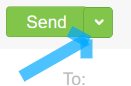 on the top toolbar.
 -
A modal window titled Send a self-destructing secure email will appear on the screen.
-
Configure the following fields:
-
Recipient: Select the target recipient from your saved contacts.
-
Message lifetime: Choose how long the message will remain accessible before it expires and self-destructs (e.g., 24 hours, 72 hours).
-
Encryption type: Choose Password-based.
-
-
Click the green Encrypt button at the bottom of the modal.
Step 5: Save the Decryption Password
-
The window will display an Encrypted message password.
-
Copy this password and store it securely.
-
Share this password with your recipient through a separate, out-of-band communication channel (such as an encrypted chat app or SMS). MailBig does not send the password inside the email.
-
Click Ok.
Step 6: Dispatch the Email
-
MailBig will automatically replace your plaintext draft with an encrypted access link and an expiration notice.
-
Click the Send button on the top toolbar to deliver the email.
Recipient Experience
-
The recipient opens the email in any mail platform (such as Roundcube, Gmail, Outlook, or Apple Mail).
-
They click the secure link provided in the body of the email.
-
A browser tab opens prompting for the password.
-
The recipient enters the password you provided and clicks Decrypt message.
-
The confidential text is revealed on screen and will permanently expire once the configured lifetime window closes.